
Lesson 8: Shopify’s Built-In Image Editor
An Overview of the Shopify Image Editor
Introduction
Shopify provides a built-in image editor to help store owners manage and optimize their product images. This tool offers some basic functions that allow you to edit your images directly within the Shopify platform, eliminating the need for external image editing software. This lesson will provide a brief overview of the Shopify image editor and its functions.
Shopify Image Editor: An Overview
The Shopify image editor is a user-friendly tool that allows you to perform basic image editing tasks directly within your Shopify admin. It’s accessible from the product detail page, where you can upload and edit images related to each of your products.
Here are some of the key functions provided by the Shopify image editor:
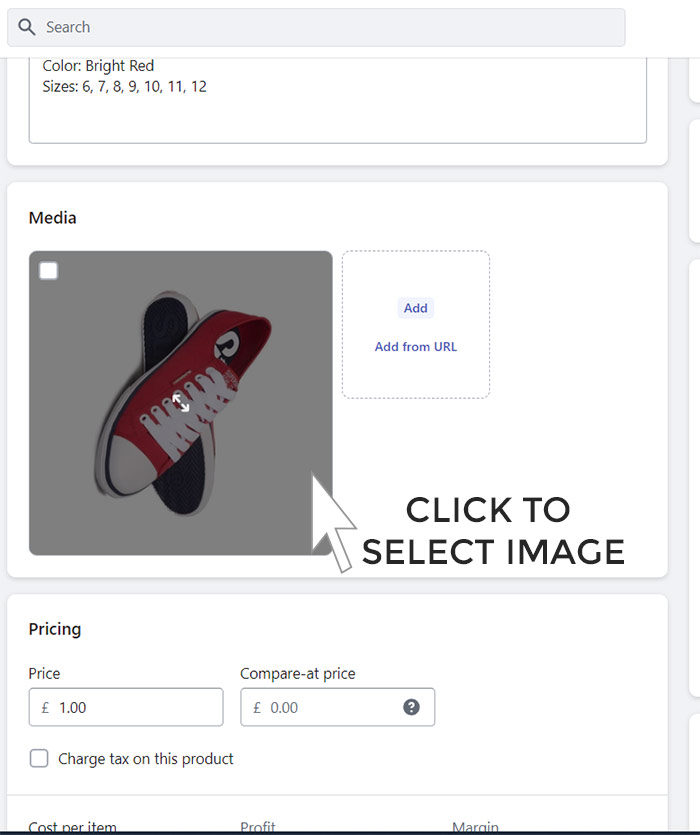
Tool location
Select one of the tools from the bottom left menu.
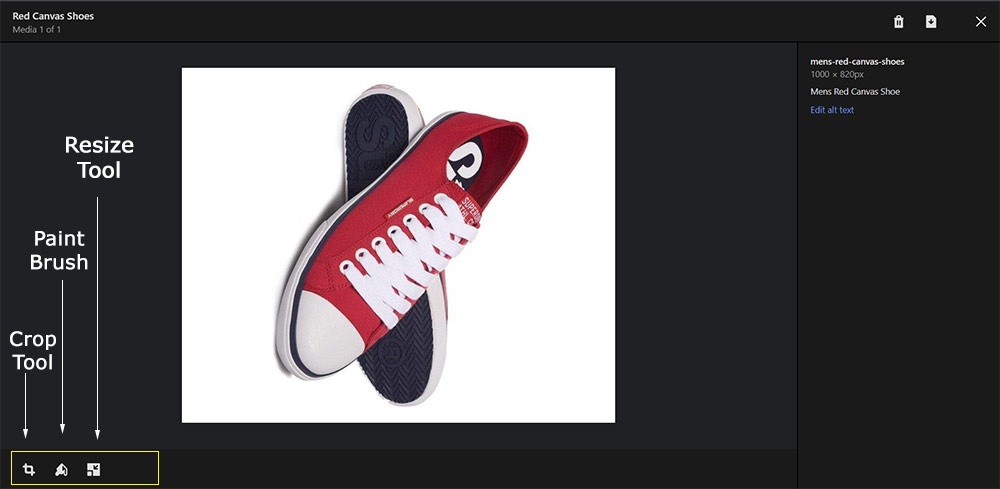
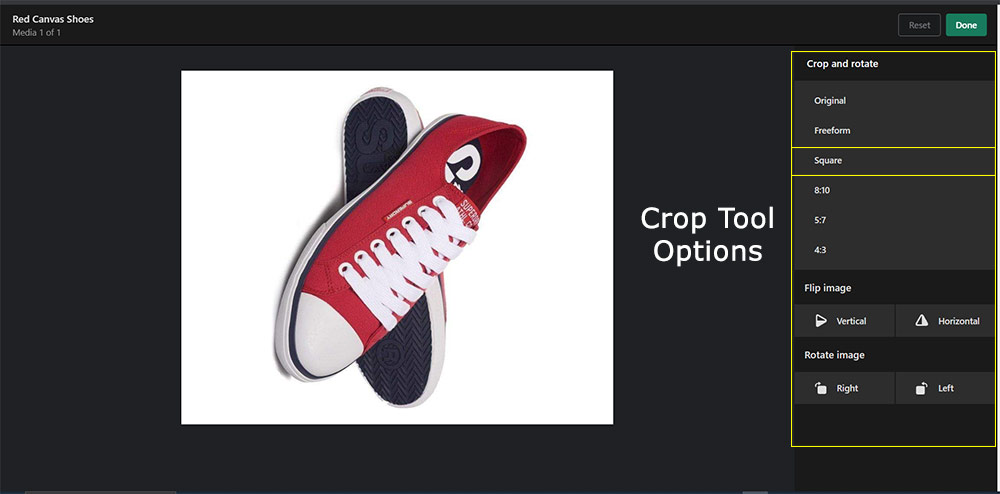
1. Crop
The crop function allows you to adjust the framing of your image. This can be useful for removing unnecessary background elements or focusing on a particular part of the product. The Shopify image editor provides a range of preset aspect ratios, as well as a freeform crop tool.
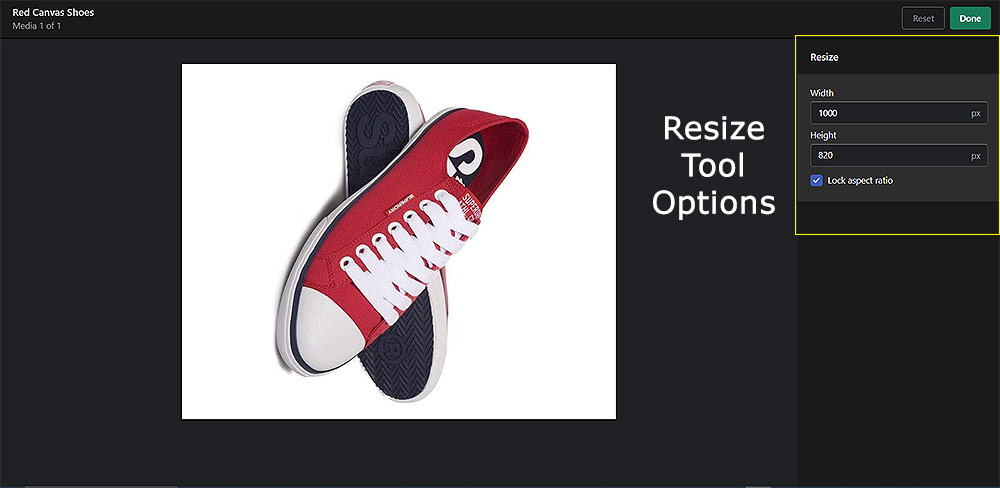
2. Resize
The resize function allows you to change the dimensions of your image. This can be useful for ensuring consistency in image presentation across your store, as discussed in Lesson 7.
3. Rotate
The rotate function allows you to change the orientation of your image. This can be useful for correcting images that were taken at an angle or for creating a more dynamic presentation.
4. Alt Text
The alt text or alternative text can be edited from the editor. Click edit alt text and enter the image description. This is used by screen readers and Google to understand the contents of the image so use descriptive terms such as “image of mens red canvas shoes”
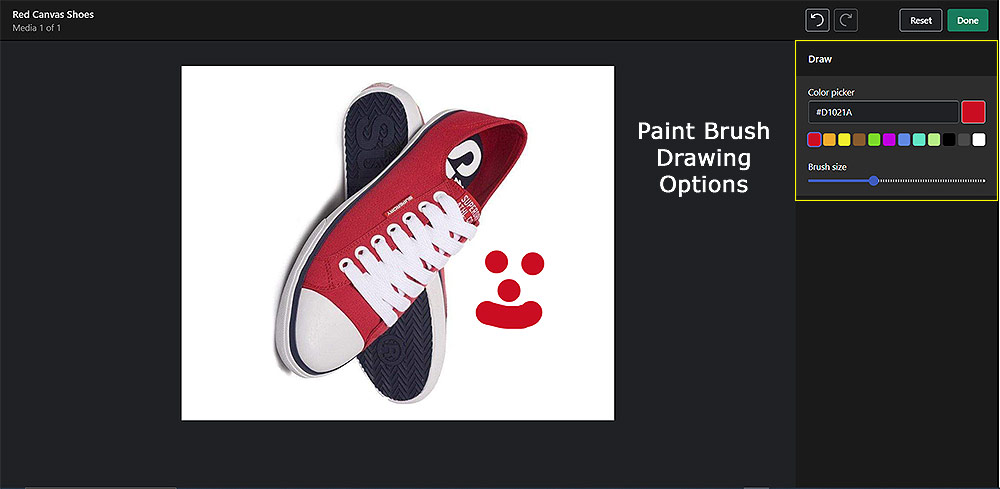
5. Draw
The draw function allows you to add freeform lines to your image. This can be useful for highlighting particular features of a product. You can also use this for removing brand names from image backgrounds by coloring them in with a background color.
Conclusion
The Shopify image editor is a very basic tool that can help you enhance your product images and improve the visual appeal of your store. By understanding and utilizing its functions, you can create more engaging and effective product images, leading to a better shopping experience for your customers.
Any Questions: Ask for help in the forums and quote, “Lesson 8: Shopify’s Built-In Image Editor”