
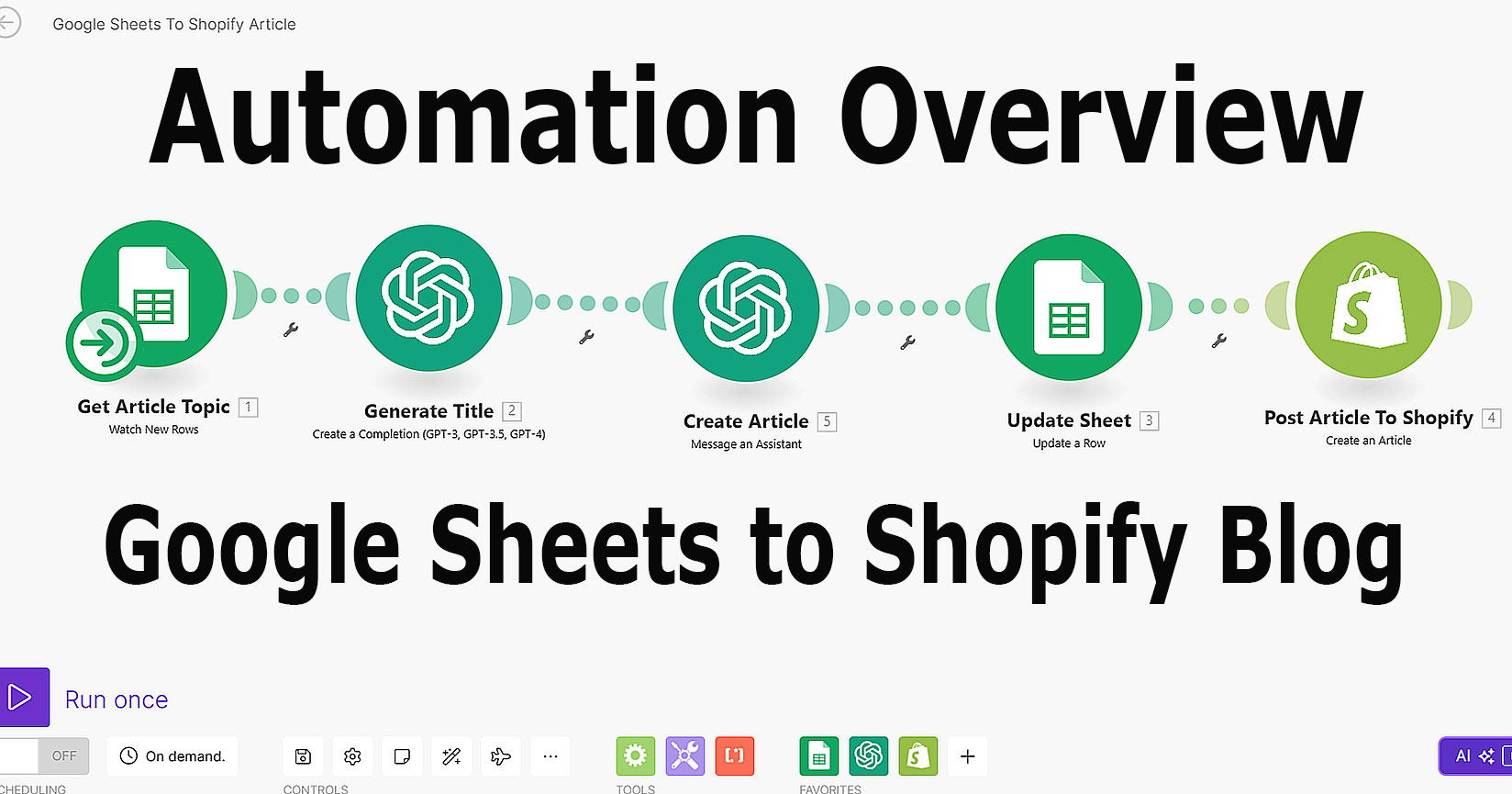
Lesson 1 – Introduction to make.com
Step-by-Step Instructions
In this tutorial, you’ll learn how to create workflow automations using make.com.
Make.com is a powerful platform that allows you to build workflows and automate tasks without coding. Whether you’re new to automation or have some experience, this guide will help you leverage make.com’s tools to design and execute workflows seamlessly.
You’ll learn to connect apps, create workflows, and monitor data flow in real time. The tutorial will cover signing up, using templates, building custom workflows, and managing scenarios, helping you streamline tasks and enhance productivity in your personal and professional life.
For this tutorial we will connect Google Calendar and Google Sheets
Step-by-Step Instructions for Using Make.com
1. Introduction to make.com:
- Visit make.com.
- Click on “Get started” in the top right-hand corner.
- Sign up by entering your name, email, password, country, and hosting region, then agree to the terms.
- Check your email inbox for a verification link and click it.
- Sign in using your email and password.
2. Initial Setup:
- Answer questions about your company:
- Industry, role, organization size, experience with automation workflows, and the part of your work you want to automate.
- Click “Get started.”
3. Exploring Templates:
- From the dashboard, click “Templates” in the sidebar.
- Browse available templates and select one to use.
- Click “Create new scenario from this template.”
4. Using a Template:
- Select the trigger (e.g., Gmail) and connect your Gmail account.
- Configure options like marking emails as read once fetched and setting the maximum number of results.
- Set the schedule for the scenario to run (e.g., every 15 minutes, daily, specific days, or on demand).
- Customize the filter (e.g., emails containing the word “meeting”).
- Connect the second email account for forwarding emails and configure options like subject, content, and attachments.
- Click “Run once” to test the workflow.
5. Creating a Custom Workflow:
- Go back to the home page and click “Create a new scenario” in the top right-hand corner.
- Click the big purple plus icon to add a trigger module.
- Search for and select “Google Calendar.”
- Choose a trigger type (e.g., “Watch events” for created, updated, deleted, or started events).
- Connect your Google Calendar account.
- Select the calendar and configure event types to watch (e.g., starting date).
6. Adding an Action Module:
- Click the plus icon to add another module.
- Search for and select “Google Sheets.”
- Choose the action type (e.g., “Add a row”).
- Connect your Google Sheets account.
- Select the method to find the sheet (e.g., select by path or enter manually).
- Configure headers and customize columns and content to be added.
- Click “OK.”
7. Setting Up a Filter:
- Click the wrench icon to set up a filter.
- Add a label (e.g., “meeting”).
- Add a condition (e.g., description containing the word “meeting”).
- Click “OK.”
8. Testing and Saving the Automation:
- Click “Run once” to test the workflow.
- Ensure everything is set up correctly (e.g., scenario completion message).
- Save the automation by clicking the save icon.
9. Managing Scenarios:
- Go back to the home page and check your operations.
- Click “Scenarios” in the sidebar to view all scenarios.
- Activate scenarios by clicking the switch on the right.
- Pause scenarios by turning them off as needed.
- Filter scenarios by active, inactive, and concepts.
- Organize scenarios into folders by adding a new folder, giving it a name, and dragging scenarios into it.
Conclusion:
With make.com’s intuitive drag-and-drop builder, extensive app library, and powerful no-code toolkit, you can automate workflows to streamline tasks, save time, and achieve more in both personal and professional settings.
In the next lesson we create a simple Google sheet to use as a storage engine
There are so many resources detailing the Make Platform that i didn’t feel the need to create a new one. The instructions above have been taken from the video below.
Video Credit: https://www.youtube.com/watch?v=gHMYoReFCyg